


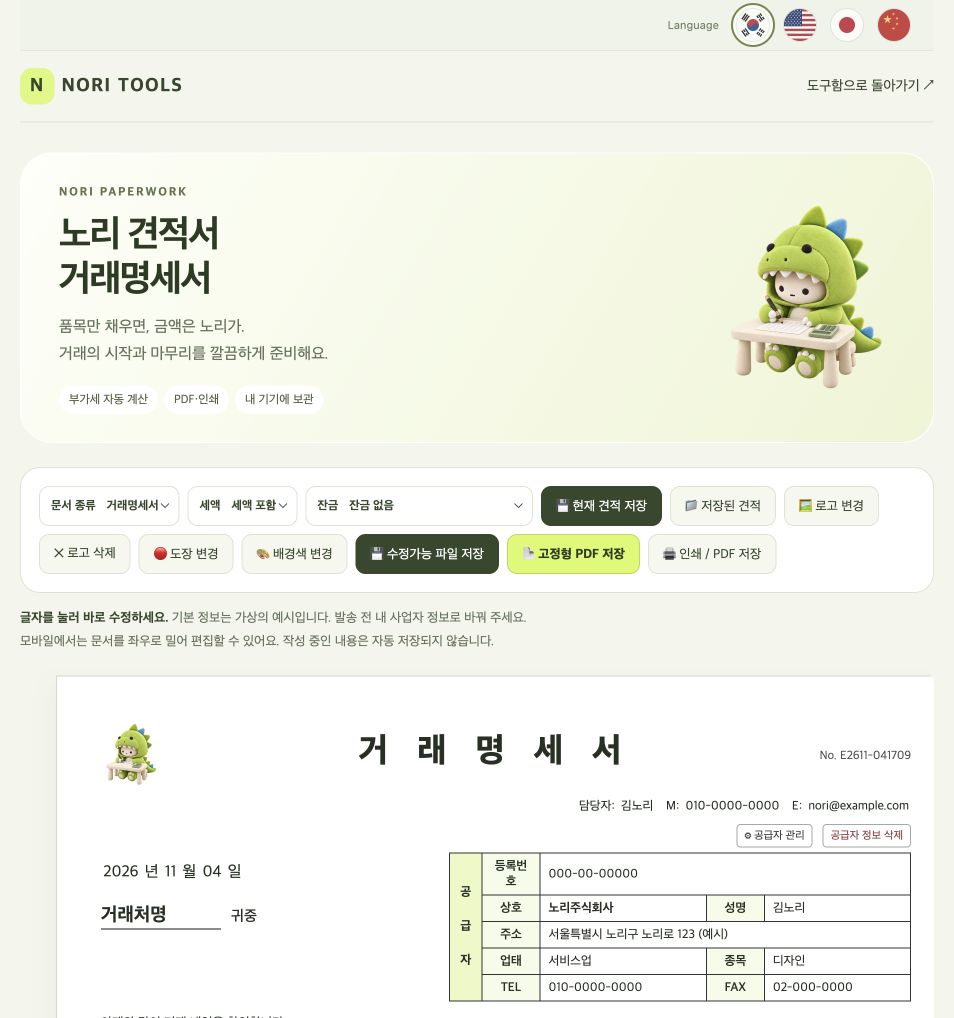
Nori Quotation also includes a transaction statement template. Switch document types to organize items and amounts without installing software. Create, print or save a PDF for free without an account.
Quotation or transaction statement?
Use a quotation for a proposed transaction and a transaction statement for the actual transaction details. Both use the same editor, so you can switch without re-entering the supplier and items.
1. Select Transaction statement
Select Transaction statement in the top menu and check that the title and related labels change. Update any existing date, quantities and prices to match the actual transaction. Switching the document type does not automatically confirm a transaction.
2. Enter the actual transaction details
- Enter the supplier’s business name, registration number, contact person and the customer’s name.
- Check the transaction date and document number.
- Enter the items actually supplied, specifications, quantities and unit prices.
- Check tax-inclusive/exclusive settings and totals.
- Add any relevant information in Notes.
For example, record 50 packaging stickers and 100 information cards on separate rows. Separate different specifications or prices to make the transaction easier to review later.
3. Check how the outstanding balance is shown
Choose No outstanding balance if nothing remains. Otherwise, include the balance in the top total or show it separately. Check both top and bottom amounts before saving to avoid confusing the current transaction with the outstanding balance.
4. Save a PDF with a clear filename
Use Save fixed PDF or Print / Save PDF. A name such as 2026-11-04_NoriShop_Statement.pdf makes files easier to find. A small note that the document was made free with Nori Tools appears at the bottom.
Save frequent suppliers and documents
Save supplier details or the current document in this browser on this device. To use them elsewhere, save a backup or editable file separately. Check that you have saved before refreshing.
Does this issue electronic tax invoices?
No. This tool creates and saves quotations and transaction statements. It does not issue electronic tax invoices or submit tax returns.